Work In Progress
The Work in Progress screen is where you access open orders in Manager. In addition to being able to select any open order to work in, you are easily able to access the other areas of the system. As such, this is likely the screen you will most often be in when you are not working with an open order.
NEW: WIP/Order Grid Settings
The look of the screen can be customized to fit the unique needs of system users.
 To access the Work in Progress (W.I.P.) screen:
Select the W.I.P. button from the button bar. The Work in Progress screen displays.
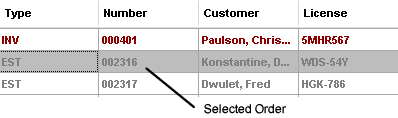
The rows of the Work in Progress screen list your shop's open orders. You select an order by clicking on it with your mouse pointer, or by moving the highlight bar up and down with your arrow keys.
 Editing Field Values
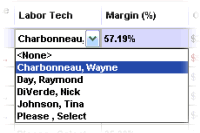
It’s now possible to edit field values such as the service writer OR technician assigned to the job while still in the Work-In-Progress screen, without first having to open it on the Order screen anymore. Just click on the value and a pop-up allows you to pick a new entry.
Searching/Sorting
Search any column and multi-sort the columns with a primary and now first time, secondary sort options. Excluding sorting order, these WIP screen settings are retained per name or job function selected from your User List.
To Search a Field Value:
1. Right Click on a Field heading. A popup menu allows you to enter a search string.
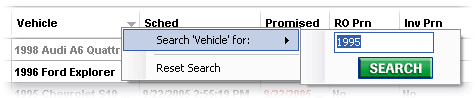
2. Enter the value you want to search for. The example query above searches the Vehicle field for vehicles with 1995 in the model.
3. Click Search. Vehicles containing 1995 in the model name are shown highlighted in the WIP grid.
Sorting You can sort any field in the WIP screen by clicking on the column heading. This feature is especially helpful in sorting the Gross Profit % column to identify zero, low, and high profit line items that might require attention.
Button Options
The buttons along the bottom of the Work in Progress screen provide a number of options for working with open orders. These options are described briefly below:
- Purge Ests - Initiates a procedure to delete any estimates created prior to the specified number of days. (more >>)
- Display - Opens the Status Display Preferences dialog box in which you can alter aspects of your display including the types of orders to be displayed and the sort order. You are also able to conduct a word search from this dialog box.
- Scheduler - Opens the Schedule Work dialog box, in which you can change the schedule time and/or date for the work to be performed.
- Payment - Opens the Apply Payments dialog box, in which you can apply a payment to an order.
- Post - Allows you to post an invoice.
- Detail - Opens the Work in Progress Detail dialog box which contains status information about the customer and vehicle(s). Editable fields are available for entering, and/or changing, the Status, Location, Hat Number, and Completion Time for the vehicle.
- Order - Opens the Order panel for the vehicle.
Colors
To ease identification, orders displayed in the Work in Progress screen are color-coded. Some types of orders change after printing.
- Gray - Estimate, Quick Estimate (unprinted)
- Black - Repair Order, Invoice/Counter Sale (unprinted)
- Blue Invoice (printed), Counter Sale (printed)
Red Flagging
In addition to color-coding types of orders, Manager also highlights entries in some data fields in red, indicating a condition that may require attention. This type of exceptions highlighting is commonly known as "red flagging."
Manager automatically red flags orders whose promised date is prior to the current date. For example, if an order was promised to be completed by February 6 and the current date is February 7, the date in the promised field appears in red.
You are also able to red flag certain vehicle location and/or status designations. You set up these designations in Location (Setup > Standard Descriptions > Location) and Status (Setup > Standard Descriptions > Status) descriptions.
Opening a W.I.P. Order
Most often when you go to the W.I.P. screen, it will be to open an existing order.
To open an order from the Work in Progress screen:
1. Click your mouse pointer in any cell on the row of the order you wish to access in the order grid. The row is highlighted.
2. Select Order.
OR
Double-click on the order line item.
You are taken to the Order Panel for the selected order.
See
also...
Work
in Progress Detail dialog box
Schedule
Work dialog box
Apply Payments dialog box
Status Display Preferences